R Shiny ile İnteraktif Dashboard Tasarlama
Kullanıcıların filtrelerle veriyi keşfedebildiği, grafik ve özetlerin seçimlere göre anında güncellendiği bir panoyu adım adım kuruyorum: reaktif akış, boş durum yönetimi ve paylaşıma hazırlık.
- Araçlar
- Veri Görselleştirme
Shiny nasıl çalışır?
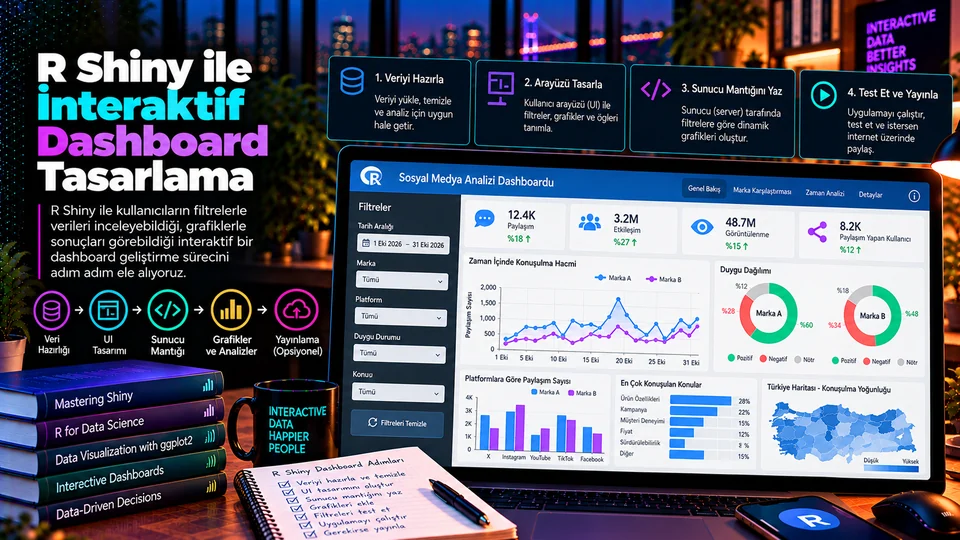
Shiny, R koduyla web uygulamaları oluşturmayı sağlar. Bir uygulama tipik olarak üç parçadan oluşur: UI arayüzü ve kontrolleri tanımlar, server girdilere göre hesaplama yapıp çıktıları üretir, shinyApp() ise bu ikisini birleştirip uygulamayı başlatır.
Kullanıcı bir seçim yaptığında Shiny hangi çıktının o girdiye bağlı olduğunu izler ve yalnızca gereken ifadeleri yeniden çalıştırır. Bu reaktif akış sayesinde filtreler, grafikler, KPI metinleri ve tablolar aynı seçime birlikte uyum sağlar — hiçbirini elle güncellemeniz gerekmez.
1. Kapsamı ve veri yapısını planlayın
İlk sürümde tek bir kullanıcı profili ve birkaç net soruyla başlayın. Örneğin bir ekip “hangi silindir grubunda yakıt verimliliği daha iyi?” sorusunu yanıtlamak isteyebilir. Veri alanlarını, filtre değerlerini, yenileme sıklığını ve gösterilecek metrikleri önceden belirleyin.
Veri kaynağını uygulamadan ayrı tutun ve büyük dosyaları her kullanıcı oturumunda yeniden okumayın. Üretim senaryosunda önbellekleme, veritabanı sorgusu, hata yönetimi ve erişim kontrolü de tasarımın parçasıdır.
2. Arayüzü kurun
Filtreleri mantıklı biçimde gruplayın: sol panelde kategori seçimi, tarih aralığı ve ölçüt seçicisi; ana alanda KPI, grafik ve tablo. Kontrol etiketleri anlaşılır olmalı ve başlangıç seçimi tek başına yararlı bir görünüm üretmeli.
library(shiny)
library(ggplot2)
library(dplyr)

ui <- fluidPage(
  titlePanel("Araç Verisi Dashboard'u"),
  sidebarLayout(
    sidebarPanel(
      selectInput("cyl", "Silindir grubu",
                  choices = c("Tümü", "4", "6", "8")),
      selectInput("x", "X ekseni",
                  choices = c("mpg", "wt", "hp"), selected = "wt"),
      selectInput("y", "Y ekseni",
                  choices = c("mpg", "wt", "hp"), selected = "mpg")
    ),
    mainPanel(
      textOutput("n"),
      plotOutput("scatter"),
      tableOutput("summary")
    )
  )
)
inputId değerleri server tarafında input$... olarak okunur. UI'daki her çıktı kimliğinin server tarafında karşılık gelen bir render* ifadesi olmalı; eşleşmeyen bir kimlik hata vermez, sadece boş bir alan bırakır.
3. Filtreleme ve reaktif hesaplama
Tekrarlanan filtrelemeyi reactive() içinde tanımlayın. Böylece veri alt kümesi yalnızca bağımlı girdi değiştiğinde yeniden hesaplanır ve birden çok çıktı aynı sonucu paylaşır. Aynı filtreyi üç ayrı render bloğunda tekrarlamak, aynı işi üç kez yaptırmak demektir.
cars <- mtcars |>
  tibble::rownames_to_column("model") |>
  mutate(cyl = as.character(cyl))

server <- function(input, output, session) {

  filtered <- reactive({
    if (input$cyl == "Tümü") cars
    else filter(cars, cyl == input$cyl)
  })

  output$n <- renderText({
    paste("Filtredeki kayıt:", nrow(filtered()))
  })

  output$scatter <- renderPlot({
    ggplot(filtered(), aes(x = .data[[input$x]],
                           y = .data[[input$y]])) +
      geom_point(color = "#48b8c6", size = 3) +
      theme_minimal(base_size = 13) +
      labs(x = input$x, y = input$y)
  })

  output$summary <- renderTable({
    filtered() |>
      summarise(across(c(mpg, wt, hp),
                       ~ round(mean(.x), 2)))
  })
}

shinyApp(ui = ui, server = server)
Dikkat edilecek iki ayrıntı var. filtered bir fonksiyondur, bu yüzden her kullanımda filtered() şeklinde parantezle çağrılır. .data[[input$x]] ise kullanıcının seçtiği sütun adını ggplot'a güvenli biçimde aktarır — doğrudan aes(x = input$x) yazarsanız grafikte verinin kendisi değil, sütunun adı metin olarak çizilir.
4. Grafikleri ve özetleri tasarlayın
Her görsel tek bir soruya cevap versin. Zaman eğilimi için çizgi, kategori kıyası için çubuk, iki ölçüm arasındaki ilişki için saçılım grafiği kullanın. Eksen adları, birimler, başlıklar ve sayı biçimleri açık olmalı.
| Dashboard öğesi | Yanıtladığı soru | Shiny çıkışı |
|---|---|---|
| KPI kartı | Seçili filtredeki toplam durum nedir? | textOutput / value box |
| Çizgi grafik | Zaman içinde ne değişti? | plotOutput + renderPlot |
| Tablo | Detay kayıtlar veya özet metrikler neler? | tableOutput + renderTable |
| Harita / etkileşimli grafik | Nerede yoğunlaşıyor, nereye odaklanmalı? | htmlwidget çıktıları |
Panonun varsayılan hâli de anlamlı olsun. Boş panel, kesilmiş etiket ve aşırı renk kullanımı kullanıcıya ek yük bindirir; renkleri tutarlı ve erişilebilir seçin.
5. Hata ve boş durumları yönetin
Filtre seçimi hiçbir kayıt döndürmeyebilir. Çıktıyı hesaplamadan önce req() ile gerekli girdileri doğrulayın ya da anlaşılır bir boş durum mesajı gösterin. Sayısal metriklerde NA değerlerini nasıl ele aldığınızı belirtin — her eksik değeri sessizce sıfıra çevirmek, kullanıcıya olmayan bir gerçeklik sunar.
output$summary <- renderTable({
  dat <- filtered()

  validate(need(nrow(dat) > 0,
                "Bu filtrelerle kayıt bulunamadı."))

  summarise(dat, ortalama_mpg = mean(mpg, na.rm = TRUE))
})
validate(need(...)) kullanıcıya kırmızı bir R hatası yerine yazdığınız cümleyi gösterir. Veri yükleme hatalarını, uzun süren işlemleri ve son güncelleme zamanını da görünür kılın; kullanıcı bir şeyi yanlış anladığında nedenini kendisi bulabilsin.
6. Performans ve uygulama yapısı
Reaktif ifadeleri küçük ve yeniden kullanılabilir tutun. Ağır hesaplamaları her çıktıda yeniden yazmak yerine ortak bir reaktif sonuçtan besleyin. Büyük veride filtrelemeyi veritabanına itmeyi, önbelleklemeyi veya önceden hazırlanmış özet tabloları değerlendirin.
Uygulama büyüdükçe filtre, grafik ve KPI bileşenlerini Shiny modüllerine ayırın; veri erişimi, iş mantığı ve sunum kodunu birbirine karıştırmayın. Gizli bilgileri (bağlantı dizesi, anahtar, parola) asla kaynak koda gömmeyin ve paylaşıma açmadan önce erişim modelini netleştirin.
7. Geliştirmeden paylaşıma
- Yerelde
Çalıştır - Sonuçları
Doğrula - Ekranlarda
İncele - Bağımlılıkları
Kaydet - Dağıtımı
Seç - İzle ve
Güncelle
- Yerelde çalıştırın: küçük bir örnek veri ve temel filtrelerle başlayın.
- Beklenen sonuçları doğrulayın: filtreli grafik ve özetleri bağımsız bir hesapla karşılaştırın.
- Farklı ekranlarda inceleyin: dar mobil ekranlarda kontrolleri ve grafikleri deneyin.
- Bağımlılıkları kaydedin: R paket sürümlerini ve veri gereksinimlerini yazılı tutun.
- Dağıtım ortamını seçin: kurum içi sunucu ya da uygun bir Shiny barındırma seçeneği.
- İzleyin ve güncelleyin: hata, veri tazeliği, erişim ve performansı takip edin.
Dashboard kontrol listesi
Kullanıcı ve soru
Panonun kime hizmet ettiği ve hangi kararı desteklediği tanımlı olmalı.
Anlaşılır filtreler
Etiketler kullanıcının dilinde olsun; sütun adı değil, iş terimi yazsın.
Yararlı varsayılan
Hiçbir seçim yapılmadan açıldığında da anlamlı bir görünüm sunsun.
Her çıktı bir soru
Hangi soruya cevap verdiğini söyleyemediğiniz görseli panodan çıkarın.
Boş durum
Sonuç dönmeyen filtrelerde açıklayıcı mesaj gösterilsin.
Tazelik ve erişim
Verinin ne zaman güncellendiği ve kimin görebildiği belli olsun.
Küçük bir arayüzle başlayın
Bir Shiny panosunun değeri, kullanıcı girdilerinin veriyi keşfetmeyi gerçekten kolaylaştırmasından gelir. Küçük bir arayüzle başlayın, girdileri reaktif veri ve çıktılara bağlayın, sonra gerçek kullanım geri bildirimiyle geliştirin.
Temiz bir düzen, doğru seçilmiş metrikler ve açıklayıcı boş durumlar; çoğu zaman eklenen fazladan görsel sayısından çok daha değerlidir. Kullanılmayan her kontrol, kullanılan kontrollerin de dikkatini dağıtır.
Resmî kaynaklar
How does Shiny work?
Shiny lets you build web applications with R code. An app typically has three parts: the UI defines the interface and controls, the server computes and produces outputs from the inputs, and shinyApp() combines the two and launches the application.
When a user makes a selection, Shiny tracks which outputs depend on that input and re-runs only the expressions that need it. Thanks to this reactive flow, filters, charts, KPI text and tables all adapt to the same selection together — you never update any of them by hand.
1. Plan the scope and the data
Start the first version with a single user profile and a few clear questions. A team might want to answer “which cylinder group has better fuel efficiency?”. Decide the data fields, filter values, refresh frequency and the metrics you will show in advance.
Keep the data source separate from the app and do not re-read large files on every user session. In a production scenario, caching, database queries, error handling and access control are part of the design too.
2. Build the interface
Group the filters sensibly: category selection, date range and metric picker in the side panel; KPIs, charts and tables in the main area. Control labels should be understandable, and the default selection alone should produce a useful view.
library(shiny)
library(ggplot2)
library(dplyr)

ui <- fluidPage(
  titlePanel("Vehicle Data Dashboard"),
  sidebarLayout(
    sidebarPanel(
      selectInput("cyl", "Cylinder group",
                  choices = c("All", "4", "6", "8")),
      selectInput("x", "X axis",
                  choices = c("mpg", "wt", "hp"), selected = "wt"),
      selectInput("y", "Y axis",
                  choices = c("mpg", "wt", "hp"), selected = "mpg")
    ),
    mainPanel(
      textOutput("n"),
      plotOutput("scatter"),
      tableOutput("summary")
    )
  )
)
The inputId values are read on the server side as input$.... Every output id in the UI needs a matching render* expression on the server; an unmatched id raises no error, it just leaves an empty space.
3. Filtering and reactive computation
Define repeated filtering inside reactive(). The data subset is then recomputed only when a dependent input changes, and several outputs share the same result. Repeating the same filter in three separate render blocks means doing the same work three times.
cars <- mtcars |>
  tibble::rownames_to_column("model") |>
  mutate(cyl = as.character(cyl))

server <- function(input, output, session) {

  filtered <- reactive({
    if (input$cyl == "All") cars
    else filter(cars, cyl == input$cyl)
  })

  output$n <- renderText({
    paste("Records in filter:", nrow(filtered()))
  })

  output$scatter <- renderPlot({
    ggplot(filtered(), aes(x = .data[[input$x]],
                           y = .data[[input$y]])) +
      geom_point(color = "#48b8c6", size = 3) +
      theme_minimal(base_size = 13) +
      labs(x = input$x, y = input$y)
  })

  output$summary <- renderTable({
    filtered() |>
      summarise(across(c(mpg, wt, hp),
                       ~ round(mean(.x), 2)))
  })
}

shinyApp(ui = ui, server = server)
Two details are worth noting. filtered is a function, so it is called with parentheses — filtered() — wherever it is used. And .data[[input$x]] passes the user's chosen column name safely into ggplot; write aes(x = input$x) directly and the chart plots the column's name as text rather than the data itself.
4. Design the charts and summaries
Let each visual answer one question. Use a line for trends over time, bars for comparing categories, a scatter for the relationship between two measures. Axis names, units, titles and number formats should all be explicit.
| Dashboard element | Question it answers | Shiny output |
|---|---|---|
| KPI card | What is the total under the current filter? | textOutput / value box |
| Line chart | What changed over time? | plotOutput + renderPlot |
| Table | What are the detail records or summary metrics? | tableOutput + renderTable |
| Map / interactive chart | Where is it concentrated, where should attention go? | htmlwidget outputs |
The default state of the dashboard should be meaningful too. Empty panels, truncated labels and excessive colour all add load for the user; keep colours consistent and accessible.
5. Handle errors and empty states
A filter selection may return no records at all. Validate the required inputs with req() before computing, or show a clear empty-state message. State how you handle NA values in numeric metrics — quietly turning every missing value into zero presents the user with a reality that does not exist.
output$summary <- renderTable({
  dat <- filtered()

  validate(need(nrow(dat) > 0,
                "No records match these filters."))

  summarise(dat, mean_mpg = mean(mpg, na.rm = TRUE))
})
validate(need(...)) shows the user the sentence you wrote instead of a red R error. Make data-loading failures, long-running operations and the last refresh time visible too, so that when a user misreads something they can work out why.
6. Performance and app structure
Keep reactive expressions small and reusable. Rather than repeating heavy computation in every output, feed them all from one shared reactive result. On large data, consider pushing filtering down to the database, caching, or preparing smaller summary tables.
As the app grows, split filters, charts and KPI components into Shiny modules, and do not mix data access, business logic and presentation code. Never embed secrets — connection strings, keys, passwords — in the source, and settle the access model before sharing.
7. From development to sharing
- Run
Locally - Verify
Results - Check on
Screens - Record
Dependencies - Choose
Deployment - Monitor &
Update
- Run it locally: start with a small sample dataset and the basic filters.
- Verify the expected results: compare filtered charts and summaries against an independent calculation.
- Check it on different screens: try the controls and charts on narrow mobile viewports.
- Record the dependencies: keep R package versions and data requirements written down.
- Choose the deployment environment: an internal server or a suitable Shiny hosting option.
- Monitor and update: track errors, data freshness, access and performance.
A dashboard checklist
User and question
Who the dashboard serves and which decision it supports must be defined.
Clear filters
Labels in the user's language — a business term, not a column name.
Useful default
It should show something meaningful before any selection is made.
One question per output
Remove any visual whose question you cannot state out loud.
Empty states
Filters returning nothing should show an explanatory message.
Freshness and access
When the data was refreshed and who can see it should both be clear.
Start with a small interface
A Shiny dashboard earns its value when the user's inputs genuinely make the data easier to explore. Start with a small interface, wire the inputs to reactive data and outputs, then improve it with feedback from real use.
A clean layout, well-chosen metrics and explanatory empty states are usually worth far more than extra visuals. Every unused control also distracts from the ones that are used.