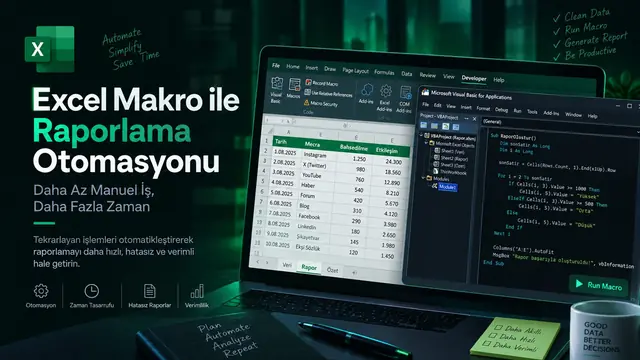
Excel VBA ile Raporlama Otomasyonu
Tekrarlayan rapor süreçlerini otomatikleştirerek zaman kazanın. Bu yazıda adım adım bir örnek üzerinden nasıl ilerlediğimi anlatıyorum.
- Araçlar
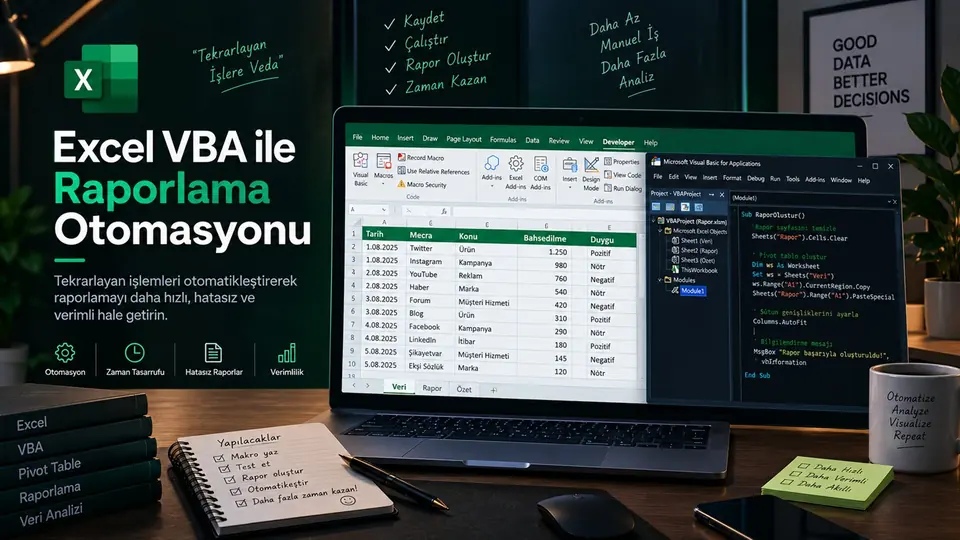
Her hafta aynı Excel dosyasını açmak, verileri kopyalamak, sütunları düzenlemek, filtreleri uygulamak, pivot tabloları yenilemek ve son raporu tekrar tekrar hazırlamak bir süre sonra ciddi zaman kaybına dönüşebilir. Özellikle raporlama işi düzenli tekrar ediyorsa, burada otomasyon için güçlü bir fırsat vardır.
Excel VBA benim için tam olarak bu noktada devreye giriyor. Amaç Excel'i daha karmaşık hale getirmek değil; tekrar eden adımları bir kez tanımlayıp sonraki raporlarda birkaç tıklamayla çalıştırmak.
“Otomasyonun en güzel tarafı, aynı işi ikinci kez düşünmek zorunda bırakmamasıdır.”
Neden Excel VBA?
Excel birçok şirkette hâlâ temel raporlama araçlarından biri. Veriler farklı dosyalardan gelebiliyor, bazı raporlar belirli formatlara uymak zorunda kalabiliyor ve işin son adımı yine Excel üzerinde tamamlanabiliyor. Bu nedenle küçük otomasyonlar bile ciddi zaman kazandırabiliyor.
Tekrarlayan işleri hızlandırır
Her raporda yeniden yaptığınız adımları otomatikleştirir.
Standart çıktı üretir
Aynı işlemler aynı sırayla çalıştığı için manuel hata riski azalır.
Büyük dosyalarda yardımcı olur
Çok sayıda satır, sayfa veya kategori üzerinde işlemleri tekrarlayabilir.
Analize daha fazla zaman bırakır
Manuel raporlama yerine sonuçları yorumlamaya odaklanabilirsiniz.
Bir Raporun Manuel Akışı
Örneğin her ay aynı raporu hazırladığınızı düşünelim. Veri dosyasını açıyor, gereksiz sütunları siliyor, filtre uyguluyor, başka sayfalara dağıtıyor, pivot tablo oluşturuyor ve son dosyayı kaydediyorsunuz.
- Veriyi al
- Temizle
- Pivot / Rapor
Bu süreç bir kez yapıldığında çok sorun değil. Fakat aynı iş her hafta veya her ay tekrarlanıyorsa toplam süre hızla büyür.
VBA ile Mantığı Otomatikleştirmek
VBA ile bu adımların tamamını tek bir makro altında toplayabiliriz. Böylece kullanıcı sadece kaynak dosyayı seçip makroyu çalıştırabilir; geri kalan adımlar kod tarafından gerçekleştirilebilir.
Sub RaporOlustur()

    Dim ws As Worksheet
    Set ws = ActiveSheet

    VeriyiTemizle ws
    PivotOlustur ws
    FormatRaporu ws
    KaydetRaporu

End Sub
Buradaki fikir aslında oldukça basit: büyük ve karmaşık tek bir makro yerine, işi küçük fonksiyonlara bölmek. Böylece kodu daha kolay test etmek ve gerektiğinde değiştirmek mümkün.
Örnek: Tekrarlayan Rapor Adımlarını Bölmek
Veri temizleme
Boş satırlar, gereksiz sütunlar, tarih ve metin formatları düzenlenir.
Filtreleme
Raporun ihtiyaç duyduğu kayıtlar seçilir.
Pivot
Toplam, adet, kategori ve kanal bazlı özetler oluşturulur.
Sunum
Sütun genişlikleri, başlıklar ve grafikler standartlaştırılır.
Pratik Bir Otomasyon Örneği
Örneğin bir sosyal medya raporunda Mecra sütununa göre kayıtları ayırıp her mecra için ayrı sayfa oluşturmak istediğimizi düşünelim. Aynı işlemi her ay manuel yapmak yerine VBA ile tek komut haline getirebiliriz.
Sub MecraBazliAyir()

    Dim sonSatir As Long
    Dim i As Long
    Dim mecra As String

    sonSatir = Cells(Rows.Count, 1).End(xlUp).Row

    For i = 2 To sonSatir
        mecra = Cells(i, 1).Value
        ' Filtrele ve ilgili sayfaya aktar
    Next i

End SubRaporlama Otomasyonunda Kontrol Listesi
Otomasyonun En Büyük Kazancı: Zaman
Diyelim ki aylık rapor hazırlamak 90 dakika sürüyor ve bunun 60 dakikası tekrar eden işlemlerden oluşuyor. Bu sürecin büyük bölümünü otomatikleştirdiğinizde aynı raporu çok daha kısa sürede hazırlayabilirsiniz.
| İşlem | Manuel | Otomasyon sonrası |
|---|---|---|
| Veri temizleme | 20 dk | 2 dk |
| Filtreleme / ayırma | 15 dk | 1 dk |
| Pivot / özet | 15 dk | 1 dk |
| Formatlama | 10 dk | 1 dk |
VBA Her Zaman Doğru Çözüm mü?
Hayır. Otomasyon aracını probleme göre seçmek gerekiyor. Excel'e çok bağlı bir süreçte VBA son derece pratik olabilir. Ancak veri çok büyüdüğünde, farklı sistemlerle entegrasyon gerektiğinde veya iş akışının Excel dışına taşınması gerektiğinde Python, SQL ya da başka araçlar daha uygun hale gelebilir.
VBA
Tekrarlayan Excel işlemleri ve kullanıcı odaklı raporlar için güçlü seçenek.
Python
Temizleme, analiz, otomasyon ve daha karmaşık veri akışları için esnek.
SQL
Veriyi kaynağında filtrelemek, birleştirmek ve özetlemek için ideal.
Power BI
Sonuçları etkileşimli rapor ve dashboard olarak sunmak için uygun.
Sonuç
Excel VBA benim için sadece makro yazmak anlamına gelmiyor. Asıl değer, her raporlama sürecine bir problem olarak bakıp “Bunu bir daha manuel yapmak zorunda mıyım?” sorusunu sormakta.
Tekrarlayan işleri otomatikleştirdiğinizde yalnızca zaman kazanmazsınız. Aynı zamanda daha standart, daha kontrollü ve daha sürdürülebilir bir raporlama süreci oluşturabilirsiniz.
“Otomasyonun amacı insanı süreçten çıkarmak değil; insanı gereksiz tekrarlardan çıkarmaktır.”
Opening the same Excel file every week, copying data, arranging columns, applying filters, refreshing pivot tables and preparing the final report again and again can turn into a serious waste of time. Especially when reporting repeats regularly, there is a strong opportunity for automation.
This is exactly where Excel VBA comes in for me. The goal is not to make Excel more complicated, but to define the repeating steps once and run them with a few clicks in future reports.
“The best thing about automation is that you never have to think about the same task twice.”
Why Excel VBA?
Excel is still one of the core reporting tools in many companies. Data can come from different files, some reports have to follow specific formats and the last step of the work is often completed in Excel. That is why even small automations can save a lot of time.
Speeds up repetitive work
Automates the steps you redo in every report.
Produces standard output
The same steps run in the same order, so the risk of manual errors drops.
Helps with large files
Can repeat operations across many rows, sheets or categories.
Leaves more time for analysis
You can focus on interpreting results instead of manual reporting.
The Manual Flow of a Report
Imagine you prepare the same report every month. You open the data file, delete unnecessary columns, apply filters, distribute data to other sheets, create a pivot table and save the final file.
- Get data
- Clean
- Pivot / Report
Done once, this process is not a big problem. But if the same work repeats every week or month, the total time grows quickly.
Automating the Logic with VBA
With VBA we can gather all of these steps under a single macro. The user only needs to select the source file and run the macro; the rest can be handled by the code.
Sub BuildReport()

    Dim ws As Worksheet
    Set ws = ActiveSheet

    CleanData ws
    CreatePivot ws
    FormatReport ws
    SaveReport

End Sub
The idea is actually quite simple: instead of one large, complex macro, split the work into small functions. That makes the code easier to test and to change when needed.
Example: Splitting Repetitive Report Steps
Data cleaning
Empty rows, unnecessary columns, date and text formats are fixed.
Filtering
The records the report needs are selected.
Pivot
Summaries by total, count, category and channel are created.
Presentation
Column widths, headers and charts are standardized.
A Practical Automation Example
For example, imagine that in a social media report we want to split records by the Channel column and create a separate sheet for each channel. Instead of doing this manually every month, we can turn it into a single command with VBA.
Sub SplitByChannel()

    Dim lastRow As Long
    Dim i As Long
    Dim channel As String

    lastRow = Cells(Rows.Count, 1).End(xlUp).Row

    For i = 2 To lastRow
        channel = Cells(i, 1).Value
        ' Filter and copy to the related sheet
    Next i

End SubReport Automation Checklist
The Biggest Gain from Automation: Time
Say a monthly report takes 90 minutes, 60 of which are repetitive tasks. When you automate most of this process, you can prepare the same report in much less time.
| Task | Manual | After automation |
|---|---|---|
| Data cleaning | 20 min | 2 min |
| Filtering / splitting | 15 min | 1 min |
| Pivot / summary | 15 min | 1 min |
| Formatting | 10 min | 1 min |
Is VBA Always the Right Solution?
No. The automation tool should be chosen for the problem. In a process that depends heavily on Excel, VBA can be extremely practical. But when data becomes very large, when integration with other systems is needed or when the workflow has to move outside Excel, Python, SQL or other tools may be a better fit.
VBA
A strong option for repetitive Excel tasks and user-focused reports.
Python
Flexible for cleaning, analysis, automation and more complex data flows.
SQL
Ideal for filtering, joining and summarizing data at the source.
Power BI
Suitable for presenting results as interactive reports and dashboards.
Conclusion
For me, Excel VBA is not just about writing macros. The real value is looking at every reporting process as a problem and asking, “Do I really have to do this manually again?”
When you automate repetitive work, you do not only save time. You also build a more standard, more controlled and more sustainable reporting process.
“The goal of automation is not to take people out of the process, but to take them out of pointless repetition.”