Excel VBA ile Pivot Table Otomasyonu
Her ay aynı raporu elle kurmaktan kurtulun. PivotCache ve PivotTable zincirinden alan yerleşimine, hata durumunda ayarları geri yükleyen sağlam bir makro yapısından sık görülen hatalara kadar.
- Araçlar
Neden PivotTable'ı otomatikleştirmeli?
PivotTable, uzun işlem kayıtlarını bölge, ürün veya tarih gibi boyutlara göre özetlemenin en hızlı yoludur. Ama her ay aynı raporu elle kurmak — kaynağı seçmek, alanları sürüklemek, biçimi ayarlamak — hem zaman alır hem de her seferinde biraz farklı bir rapor üretme riski taşır.
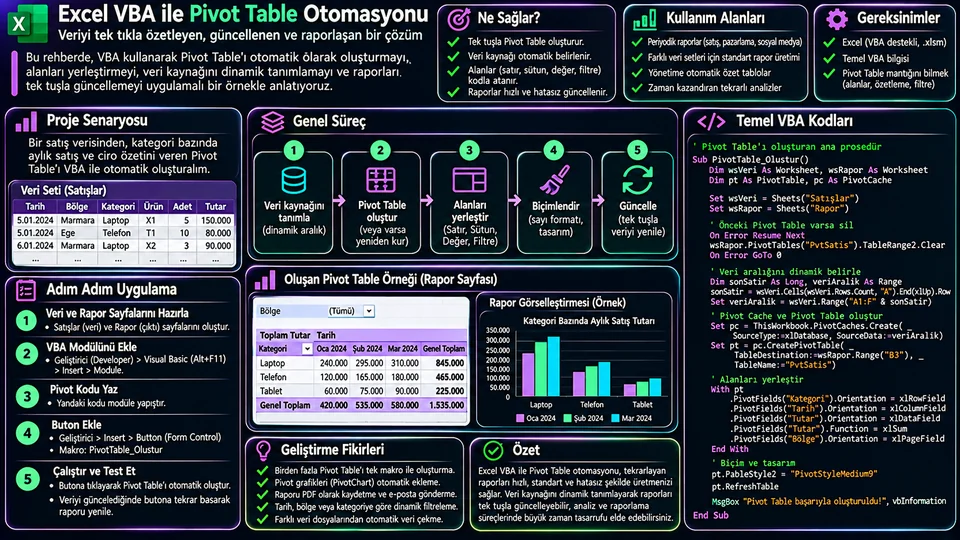
VBA ile bu süreci koda dönüştürdüğünüzde rapor her dönem aynı adımlarla kurulur: kaynak bulunur, önbellek oluşturulur, rapor belirlenen sayfaya yerleştirilir, alanlar doğru bölgelere atanır. Yeni kayıtlar geldiğinde tek bir makro çalıştırmak yeterli olur.
Dosyayı doğru hazırlamak
Otomasyonun en çok kırıldığı nokta kod değil, kaynak veridir. Çalışma kitabında iki sayfa olacak: Veri ve Rapor. Kaynak sayfada başlıklar ilk satırda olmalı, arada boş satır veya sütun bulunmamalı.
| Sayfa / tablo | İçerik | Alanlar |
|---|---|---|
Veri / Satislar | Ham satış kayıtları | Tarih, Bölge, Ürün, Adet, Tutar |
Rapor | Otomatik PivotTable çıktısı | A3 hücresinden başlar |
- Veri aralığının içine tıklayıp Ctrl+T ile Excel Tablosuna dönüştürün.
- Tablo Tasarımı sekmesinden tablo adını
Satislaryapın. - Başlıkların benzersiz ve dolu olduğunu,
Tutaralanının sayı türünde,Tarihalanının gerçek tarih biçiminde olduğunu kontrol edin. - Dosyayı makro destekli
.xlsmbiçiminde kaydedin.
A1:E500) kullanırsanız, 501. satır eklendiğinde rapora girmez ve bunu fark etmezsiniz. Excel Tablosu yeni satırlarla birlikte otomatik genişler; bu, otomasyonun en sessiz hata kaynağını baştan kapatır.VBA'da PivotTable nesne modeli
- Kaynak
Veri - Pivot
Cache - Pivot
Table
Zinciri anlamak kodu okumayı kolaylaştırır. PivotCaches.Create kaynak veriden bir önbellek üretir — bu, Excel'in bellekte tuttuğu veri kopyasıdır. CreatePivotTable bu önbelleği hedef hücreye bir rapor olarak yerleştirir. Aynı önbelleği birden fazla rapor paylaşabilir; bu bellek tasarrufu sağlar ama bir raporu yenilediğinizde diğerini de etkiler.
Alanların rapordaki yeri Orientation özelliğiyle belirlenir:
| VBA sabiti | PivotTable bölgesi | Örneğimizdeki alan |
|---|---|---|
xlRowField | Satırlar | Bölge |
xlColumnField | Sütunlar | Ürün |
xlDataField | Değerler | Tutar toplamı |
xlPageField | Filtre | Tarih |
Uçtan uca makro
Aşağıdaki kod Rapor sayfası yoksa oluşturur, varsa eski PivotTable'ı temizleyip raporu baştan kurar. Alan adları kaynak tablodaki başlıklarla birebir aynı olmalıdır — Türkçe karakterler ve boşluklar dâhil.
Option Explicit

Public Sub SatisPivotRaporuOlustur()
    Dim wb As Workbook
    Dim wsData As Worksheet
    Dim wsRapor As Worksheet
    Dim lo As ListObject
    Dim pc As PivotCache
    Dim pt As PivotTable
    Dim ptAd As String

    On Error GoTo Hata
    Application.ScreenUpdating = False
    Application.DisplayAlerts = False

    Set wb = ThisWorkbook
    Set wsData = wb.Worksheets("Veri")
    Set lo = wsData.ListObjects("Satislar")
    ptAd = "ptBolgeUrun"

    ' Rapor sayfasını bul, yoksa oluştur
    On Error Resume Next
    Set wsRapor = wb.Worksheets("Rapor")
    On Error GoTo Hata

    If wsRapor Is Nothing Then
        Set wsRapor = wb.Worksheets.Add( _
            After:=wb.Worksheets(wb.Worksheets.Count))
        wsRapor.Name = "Rapor"
    End If

    ' Sayfayı sıfırla ve başlık yaz
    wsRapor.Cells.Clear
    wsRapor.Range("A1").Value = "Bölge ve Ürün Bazında Satışlar"

    ' Excel Tablosu adından önbellek üret
    Set pc = wb.PivotCaches.Create( _
        SourceType:=xlDatabase, SourceData:=lo.Name)

    Set pt = pc.CreatePivotTable( _
        TableDestination:=wsRapor.Range("A3"), _
        TableName:=ptAd)

    With pt
        With .PivotFields("Bölge")
            .Orientation = xlRowField
            .Position = 1
        End With

        With .PivotFields("Ürün")
            .Orientation = xlColumnField
            .Position = 1
        End With

        With .PivotFields("Tarih")
            .Orientation = xlPageField
            .Position = 1
        End With

        ' Başlık, alan adıyla AYNI olamaz
        .AddDataField .PivotFields("Tutar"), "Toplam Tutar", xlSum
        .DataFields(1).NumberFormat = "#,##0.00"

        .RowAxisLayout xlTabularRow
        .TableStyle2 = "PivotStyleMedium9"
        .RefreshTable
    End With

    wsRapor.Columns.AutoFit
    wsRapor.Activate
    MsgBox "PivotTable raporu oluşturuldu.", vbInformation

TemizCikis:
    Application.DisplayAlerts = True
    Application.ScreenUpdating = True
    Exit Sub

Hata:
    MsgBox "Rapor oluşturulamadı: " & Err.Description, vbExclamation
    Resume TemizCikis
End Sub
Kodda üç tasarım kararı var, hepsi bilinçli:
- Tek çıkış noktası.
ScreenUpdatingveDisplayAlerts'ı kapattıysanız, hata durumunda bile geri açılmaları gerekir.TemizCikisetiketi veResumebunu garanti eder. Aksi hâlde makro çöktüğünde Excel donmuş gibi görünür. - Alan başlığı farklı.
AddDataField'a verdiğiniz başlık, alan adıyla aynı olursa Excel hata verir. Bu yüzden"Tutar"alanına"Toplam Tutar"başlığı verdik. - Sayfa tamamen temizleniyor.
wsRapor.Cells.Clearrapor sayfasındaki her şeyi siler. O sayfada korunması gereken başka içerik varsa bu satırı kaldırıp yalnızca eski PivotTable'ın aralığını (TableRange2.Clear) temizleyin.
Makroyu Alt+F11 ile VBA düzenleyicisini açıp standart bir modüle yapıştırın, ardından Geliştirici → Makrolar'dan çalıştırın.
Alan yerleşimini değiştirmek
Yerleşim, raporun hangi soruyu yanıtladığını belirler. Zaman eğilimi istiyorsanız Tarih satırlara gitmeli; bölge karşılaştırması istiyorsanız Bölge sütunlara. Birden fazla ölçü eklemek de mümkündür.
' Adet toplamı ve ortalama tutar
pt.AddDataField pt.PivotFields("Adet"), "Toplam Adet", xlSum
pt.AddDataField pt.PivotFields("Tutar"), "Ortalama Tutar", xlAverage

' İşlem sayısı: metin alanını saydırın
pt.AddDataField pt.PivotFields("Ürün"), "İşlem Sayısı", xlCount

' Bir alanı filtreye taşımak
pt.PivotFields("Bölge").Orientation = xlPageField
Özet işlevi seçerken dikkatli olun. Excel, sütunda tek bir metin veya boş hücre gördüğünde varsayılan olarak Topla yerine Say kullanabilir. Rapordaki sayı beklenenden çok küçükse ilk bakacağınız yer budur: değer alanı gerçekten toplanıyor mu, yoksa sayılıyor mu?
Raporu yenilemek
Yeni kayıtlar eklendikten sonra raporu baştan kurmanıza gerek yok; yenilemek yeterli.
Public Sub PivotRaporunuYenile()
    Dim ws As Worksheet
    Dim pt As PivotTable

    On Error GoTo Hata
    Set ws = ThisWorkbook.Worksheets("Rapor")
    Set pt = ws.PivotTables("ptBolgeUrun")

    pt.PivotCache.Refresh
    MsgBox "Rapor güncellendi. Satır sayısı: " & _
           ThisWorkbook.Worksheets("Veri") _
             .ListObjects("Satislar").DataBodyRange.Rows.Count, _
           vbInformation
    Exit Sub

Hata:
    MsgBox "Yenileme başarısız: " & Err.Description, vbExclamation
End Sub
Mesaj kutusunda kaynak satır sayısını göstermek küçük ama değerli bir alışkanlık: rapor güncellendiğinde kaç kayıtla çalıştığınızı anında görürsünüz. Sayı beklediğinizden çok farklıysa, bir şey ters gitmiş demektir.
Çalışma kitabındaki tüm önbellekleri yenilemek için ThisWorkbook.RefreshAll kullanılabilir; ancak bu komut dış veri bağlantılarını da tetikler. Yavaş bir sorgu varsa kullanıcı beklerken Excel kilitlenmiş gibi görünür — kapsamını bilerek kullanın.
Sık karşılaşılan hatalar
| Belirti | Muhtemel neden | Kontrol |
|---|---|---|
| "PivotTable alan adı geçerli değil" | Başlık satırında boş veya yinelenen hücre var | Başlıkları tek tek kontrol edin, boş sütun bırakmayın |
| "Unable to get the PivotFields property" | Koddaki alan adı kaynakla birebir aynı değil | Türkçe karakter, boşluk ve büyük/küçük harfi karşılaştırın |
| Toplam beklenenden küçük | Tutar sütunu metin olarak saklanmış | Hücre biçimini ve sağa hizalı olup olmadığını kontrol edin |
| Yeni satırlar görünmüyor | Kaynak sabit aralık veya önbellek yenilenmedi | Excel Tablosu kullanın, PivotCache.Refresh çağırın |
| Makro hiç çalışmıyor | Dosya .xlsx kaydedilmiş veya makrolar engelli | .xlsm biçimini ve güven merkezi ayarlarını kontrol edin |
| Excel donmuş görünüyor | Hata sonrası ScreenUpdating açılmadı | Tek çıkış noktalı hata yakalama kullanın |
Çalıştırma öncesi kontrol listesi
- Veri sayfası ve tablo adı koddakiyle eşleşiyor.
- Tablo başlıkları dolu ve benzersiz.
- Ölçü alanları sayı, tarih alanı gerçek tarih biçiminde.
- Rapor sayfasında korunması gereken başka içerik yok.
- Alan adları kodda tam olarak doğru yazıldı.
- Makro ilk kez dosyanın bir kopyasında denendi.
- Oluşan toplamlar elle veya arayüzle karşılaştırıldı.
- Yeni veri eklendikten sonra yenileme test edildi.
Sonuç
VBA, PivotTable raporlarını tekrarlanabilir hâle getirir — ama otomasyonun sağlamlığı koddan çok veri hazırlığına bağlıdır. Temiz bir Excel Tablosu, benzersiz ve açık alan adları, doğru veri tipleri ve hata durumunda ayarları geri yükleyen kontrollü bir yapı; bu dördü varsa kod basit kalır.
Önerim şu: önce küçük bir örnek dosyada çalıştırıp çıkan toplamları elle doğrulayın. Rapor beklentisi değiştiğinde de alanları arayüzde sürüklemek yerine kodda merkezi olarak güncelleyin. Böylece bir ay sonra "geçen ayki rapor nasıl üretilmişti?" sorusunun cevabı dosyanın içinde durur.
Why automate a PivotTable?
A PivotTable is the fastest way to summarise long transaction records by dimensions such as region, product or date. But building the same report by hand every month — picking the source, dragging fields, setting the format — costs time and carries the risk of producing a slightly different report each time.
Turn the process into code with VBA and the report is built with the same steps every period: find the source, create the cache, place the report on the designated sheet, assign fields to the right areas. When new records arrive, running a single macro is enough.
Preparing the file properly
The point where automation breaks most often is not the code but the source data. The workbook will have two sheets: Veri (data) and Rapor (report). On the source sheet the headers must be in the first row, with no blank rows or columns in between.
| Sheet / table | Content | Fields |
|---|---|---|
Veri / Satislar | Raw sales records | Tarih, Bölge, Ürün, Adet, Tutar |
Rapor | The automated PivotTable output | Starts at cell A3 |
- Click inside the data range and press Ctrl+T to convert it into an Excel Table.
- On the Table Design tab, set the table name to
Satislar. - Check that headers are unique and non-empty, that
Tutaris a number type and thatTarihis a real date format. - Save the file as a macro-enabled
.xlsmworkbook.
A1:E500), row 501 will not make it into the report and you will not notice. An Excel Table expands automatically with new rows, closing off automation's quietest source of error from the start.The PivotTable object model in VBA
- Source
Data - Pivot
Cache - Pivot
Table
Understanding the chain makes the code easier to read. PivotCaches.Create produces a cache from the source data — a copy of the data Excel holds in memory. CreatePivotTable then places that cache into a target cell as a report. Several reports can share one cache, which saves memory but means refreshing one affects the other.
Where a field lands in the report is set by the Orientation property:
| VBA constant | PivotTable area | Field in our example |
|---|---|---|
xlRowField | Rows | Bölge (region) |
xlColumnField | Columns | Ürün (product) |
xlDataField | Values | Sum of Tutar (amount) |
xlPageField | Filter | Tarih (date) |
The end-to-end macro
The code below creates the Rapor sheet if it does not exist and, if it does, clears the old PivotTable and rebuilds the report. Field names must match the source headers exactly — including accented characters and spaces.
Option Explicit

Public Sub SatisPivotRaporuOlustur()
    Dim wb As Workbook
    Dim wsData As Worksheet
    Dim wsRapor As Worksheet
    Dim lo As ListObject
    Dim pc As PivotCache
    Dim pt As PivotTable
    Dim ptAd As String

    On Error GoTo Hata
    Application.ScreenUpdating = False
    Application.DisplayAlerts = False

    Set wb = ThisWorkbook
    Set wsData = wb.Worksheets("Veri")
    Set lo = wsData.ListObjects("Satislar")
    ptAd = "ptBolgeUrun"

    ' Find the report sheet, create it if missing
    On Error Resume Next
    Set wsRapor = wb.Worksheets("Rapor")
    On Error GoTo Hata

    If wsRapor Is Nothing Then
        Set wsRapor = wb.Worksheets.Add( _
            After:=wb.Worksheets(wb.Worksheets.Count))
        wsRapor.Name = "Rapor"
    End If

    ' Reset the sheet and write a title
    wsRapor.Cells.Clear
    wsRapor.Range("A1").Value = "Sales by Region and Product"

    ' Build the cache from the Excel Table name
    Set pc = wb.PivotCaches.Create( _
        SourceType:=xlDatabase, SourceData:=lo.Name)

    Set pt = pc.CreatePivotTable( _
        TableDestination:=wsRapor.Range("A3"), _
        TableName:=ptAd)

    With pt
        With .PivotFields("Bölge")
            .Orientation = xlRowField
            .Position = 1
        End With

        With .PivotFields("Ürün")
            .Orientation = xlColumnField
            .Position = 1
        End With

        With .PivotFields("Tarih")
            .Orientation = xlPageField
            .Position = 1
        End With

        ' The caption must NOT equal the field name
        .AddDataField .PivotFields("Tutar"), "Toplam Tutar", xlSum
        .DataFields(1).NumberFormat = "#,##0.00"

        .RowAxisLayout xlTabularRow
        .TableStyle2 = "PivotStyleMedium9"
        .RefreshTable
    End With

    wsRapor.Columns.AutoFit
    wsRapor.Activate
    MsgBox "PivotTable report created.", vbInformation

TemizCikis:
    Application.DisplayAlerts = True
    Application.ScreenUpdating = True
    Exit Sub

Hata:
    MsgBox "Could not create the report: " & Err.Description, vbExclamation
    Resume TemizCikis
End Sub
There are three deliberate design choices in that code:
- A single exit point. If you switch
ScreenUpdatingandDisplayAlertsoff, they must come back on even when something fails. TheTemizCikislabel andResumeguarantee that. Otherwise, when the macro crashes, Excel looks frozen. - A different field caption. If the caption you pass to
AddDataFieldequals the field name, Excel raises an error. That is why the"Tutar"field gets the caption"Toplam Tutar". - The sheet is wiped.
wsRapor.Cells.Cleardeletes everything on the report sheet. If there is other content you need to keep there, remove that line and clear only the old PivotTable's range (TableRange2.Clear).
Open the VBA editor with Alt+F11, paste the macro into a standard module, then run it from Developer → Macros.
Changing the field layout
The layout determines which question the report answers. For a trend over time, Tarih belongs in the rows; for a regional comparison, Bölge belongs in the columns. You can also add more than one measure.
' Total quantity and average amount
pt.AddDataField pt.PivotFields("Adet"), "Toplam Adet", xlSum
pt.AddDataField pt.PivotFields("Tutar"), "Ortalama Tutar", xlAverage

' Transaction count: count a text field
pt.AddDataField pt.PivotFields("Ürün"), "İşlem Sayısı", xlCount

' Move a field to the filter area
pt.PivotFields("Bölge").Orientation = xlPageField
Be careful when choosing the summary function. If Excel sees a single text value or blank cell in a column, it may default to Count instead of Sum. When a figure in the report is far smaller than expected, that is the first place to look: is the value field really being summed, or counted?
Refreshing the report
After new records are added you do not need to rebuild the report; refreshing is enough.
Public Sub PivotRaporunuYenile()
    Dim ws As Worksheet
    Dim pt As PivotTable

    On Error GoTo Hata
    Set ws = ThisWorkbook.Worksheets("Rapor")
    Set pt = ws.PivotTables("ptBolgeUrun")

    pt.PivotCache.Refresh
    MsgBox "Report updated. Row count: " & _
           ThisWorkbook.Worksheets("Veri") _
             .ListObjects("Satislar").DataBodyRange.Rows.Count, _
           vbInformation
    Exit Sub

Hata:
    MsgBox "Refresh failed: " & Err.Description, vbExclamation
End Sub
Showing the source row count in the message box is a small but valuable habit: when the report updates, you immediately see how many records it ran on. If that number is far from what you expected, something has gone wrong.
To refresh every cache in the workbook you can use ThisWorkbook.RefreshAll, but that command also triggers external data connections. If one query is slow, Excel will look locked up while the user waits — use it knowing its scope.
Common errors
| Symptom | Likely cause | What to check |
|---|---|---|
| "The PivotTable field name is not valid" | An empty or duplicated cell in the header row | Check headers one by one; leave no blank columns |
| "Unable to get the PivotFields property" | A field name in the code does not match the source exactly | Compare accents, spaces and letter case |
| The total is smaller than expected | The amount column is stored as text | Check the cell format and whether values are right-aligned |
| New rows do not appear | Fixed source range, or the cache was not refreshed | Use an Excel Table; call PivotCache.Refresh |
| The macro does not run at all | Saved as .xlsx, or macros are disabled | Check the .xlsm format and Trust Center settings |
| Excel looks frozen | ScreenUpdating was never turned back on after an error | Use error handling with a single exit point |
Checklist before running
- The data sheet and table name match the code.
- Table headers are non-empty and unique.
- Measure fields are numeric and the date field is a real date.
- There is no other content on the report sheet that must survive.
- Field names are spelled exactly right in the code.
- The macro was first tried on a copy of the file.
- The resulting totals were checked by hand or against the UI.
- Refreshing was tested after adding new data.
Conclusion
VBA makes PivotTable reports reproducible — but the robustness of the automation depends far more on data preparation than on code. A clean Excel Table, unique and unambiguous field names, correct data types, and a controlled structure that restores settings on error: with those four in place, the code stays simple.
My advice: run it on a small sample file first and verify the totals by hand. When the report requirement changes, update the fields centrally in code rather than dragging them in the interface. That way, a month later, the answer to "how was last month's report produced?" sits inside the file.